For two years, the same questions kept showing up in keyboard communities. Why won’t my keyboard connect to the Launcher? Why does my remapped key type the wrong symbol? What is a layer, and why did my firmware update just stop halfway?
We know because we counted: the Launcher comes up in over 260 posts and 550 comments across r/Keychron, r/MechanicalKeyboards, r/olkb and a few smaller subs. Most of the friction points repeat.
So rather than write another manual, we put the answers inside the tool. Keychron AI is an assistant built into the Launcher web app, currently in beta. You type what you want, in your own words and your own language, and it makes the change for you. In the browser, nothing to install.
Every quote below links to the original thread. You can check that we didn’t invent our own complaints.
What the assistant does
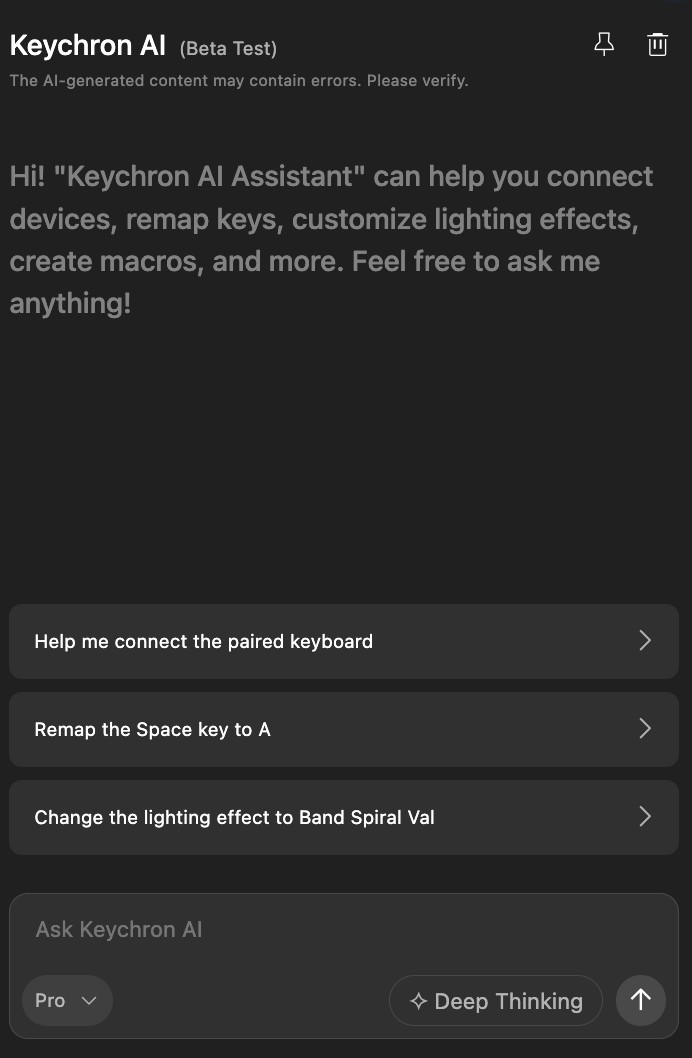
Click the AI button in the top-right corner of the Launcher and type a request. It can:
- Connect devices — checks what’s paired and walks you through connecting a keyboard or mouse
- Remap keys — “remap the Space key to A”, without touching the key matrix view
- Set lighting — any RGB effect by name, plus brightness, speed and color
- Build macros — describe the sequence, it creates the macro
- Adjust a connected mouse — buttons, DPI, polling rate
- Check and explain — firmware version, battery, connection status, and answers pulled from the official FAQ
There’s also a model picker (Pro) and a Deep Thinking toggle for requests that need more than one step of reasoning.
Worth being clear about what this isn’t. Some “AI keyboards” give you a dedicated key that opens a chatbot. This is the reverse: an assistant that operates the keyboard’s own settings, inside the configurator you already had open.
Five questions from the community, answered by typing them
1. “It doesn’t even connect”
“It doesn’t even connect to the launcher without using the cable. It detects the keyboard… but then when you try to match the device… it’s somehow unmatched again?” — a Keychron owner on r/Keychron
Type “help me connect my keyboard” and the assistant checks what’s paired, then walks the steps with you. It also states the requirements up front: a cable or the 2.4G receiver (a few models are wired-only in the Launcher), plus a Chromium-based browser. No more guessing which part failed.
2. The keycode trap
“Launcher does not deal with symbols, it deals with keycodes, because your keyboard has no idea what symbols are on the keycaps or how the OS will interpret them.” — a helpful explanation on r/Keychron
That answer is technically right, and a new user shouldn’t have to learn it. Say “make this key type @” and the keycode layer is handled for you.
3. Firmware updates that go dark
“I’m having trouble upgrading the firmware… I’m doing what it says in the launcher, but when I plug it in holding the escape key, it just doesn’t turn on. Anyone have any suggestions?” — a stuck user on r/keyboards
Ask the assistant to check your device first. It reads out current firmware, battery and connection status, then goes through the update one step at a time, so you know where you are if something stalls.
4. Making sense of layers
“I’m pretty new to customizing layers, so I haven’t used anything besides the Keychron Launcher…” — a newcomer on r/olkb
Layers are the most useful idea in keyboard customization and the least obvious one. Describe the outcome you want, like “make this key switch to my gaming layer”, and the assistant sets the right action. If you ask, it will also explain the difference between hold-to-switch and tap-to-toggle.
5. Browser and OS quirks
“Had some trouble using the Keychron launcher with Brave browser until I added [a udev rule] to the .rules file. Now everything works as intended :)” — a Linux user on r/Keychron
Ask “why won’t my keyboard connect?” and it points at the usual suspects: browser support, permissions, cable. Cheaper than an evening on the forums.
What early users say
Ten days into the beta, a post appeared on r/Keychron titled “Keychron’s AI assistant is actually useful.” The author had used it to build a dual macOS + Windows keymap on a Lemokey P1 HE, including cloning bindings between layers:
“It had minimal issue with doing things like cloning a set of bindings from one layer to another… It’s nothing earth-shattering, just a simple and actually useful application of AI.”
We’ll take “simple and actually useful.” That was the design brief, more or less word for word.
Where it still falls short
The panel itself says “Beta Test” at the top, next to a disclaimer we insisted on: “The AI-generated content may contain errors. Please verify.” In practice:
- Some requests miss, and long multi-step configurations can need a second prompt. When the assistant isn’t confident, it guides you through the menus instead of guessing on your behalf.
- Initial setup still requires a cable or the 2.4G receiver. Bluetooth alone won’t get a new device into the Launcher, and a few models only work wired.
- You need a Chromium-based browser (Chrome, Edge, Arc and similar). Safari and Firefox don’t support the WebHID connection the Launcher depends on.
- It configures keyboards. Ask it about the weather and you’ll get redirected back to your keymap, politely.
Try it in 30 seconds
- Open launcher.keychron.com in a Chromium-based browser and connect your keyboard.
- Click the AI button in the top-right corner.
- Ask for something you’ve been putting off: “Remap Caps Lock to Escape.” “Change the lighting to Band Spiral Val.” “Set up a macro that types my email address.”
FAQ
Is Keychron AI free? Yes. It’s part of the Launcher web app, which is free. The assistant is in beta.
Which keyboards does it work with? Keychron and Lemokey devices supported by the Launcher. If your keyboard works in the Launcher, the AI button is there.
Does it work in my language? Yes. The Launcher interface itself ships in 28 languages, and you can write to the assistant in yours — requests don’t need to be in English.
Does it replace QMK or VIA? No. The openness you bought a Keychron for stays put. The assistant is a faster way to drive the same configuration, not a layer of lock-in on top of it.
Sources and further reading
- Keychron Launcher — the AI button lives in the top-right corner (beta)
- How to use the Launcher to program your keyboard — the full manual, if you prefer menus
- Keychron Support Center: keyboard not recognized
- Community threads quoted above: connection · keycodes · firmware · layers · browser setup · user review
Written by Carolyn, who runs content and community at Keychron. Pain points and quotes come from two years of public community discussion (260+ posts and 550+ comments mentioning the Launcher) and Keychron’s Support Center. Every quote links to its original thread. Keychron AI is in beta; tell us what broke on r/Keychron.